
Although it is easier to update ISE through the graphical user interface in this post we will use the command-line for patching ISE to the latest 2.4 software release. An advantage of utilizing the CLI is that we can control the order in which to install the patch to different nodes which is being taken care of automatically if the GUI is used to update ISE.
Preperation#
Before updating ISE make sure you go over all the steps for a smooth upgrade expierence.
Checksum verification#
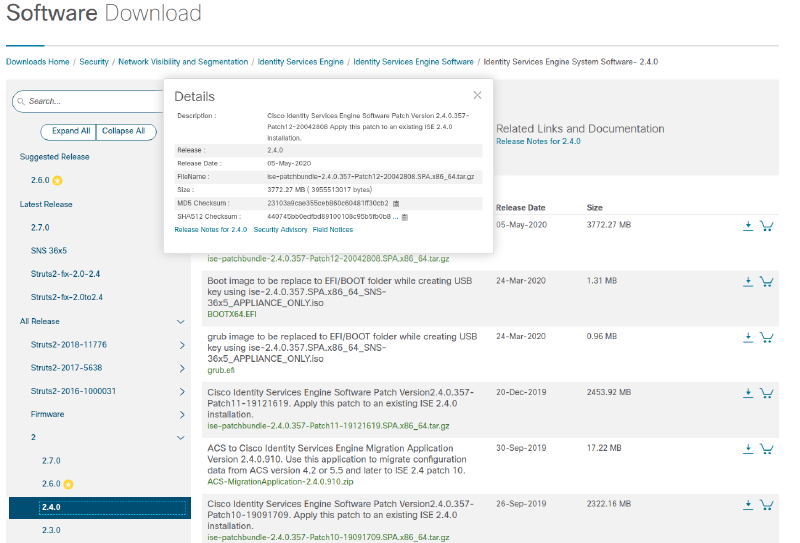
Making sure the patch file is not corrupted could cost you quite some time during a maintenance window. Verifying the file is quite easy and can be done by generating an md5 checksum from the update file and comparing it to the hash listed on the Cisco download page
| |
After generating the hash navigate to the Cisco Download page and compare it to the md5 hash listed when you hover over the update file.
Application status#
Having a basic idea of which processes should be running is a good indicator for verifying that the update has completed successfully. A patch release should not include any new features, so the processes you see running after the upgrade should match the ones that were running before the update process.
| |
Backup#
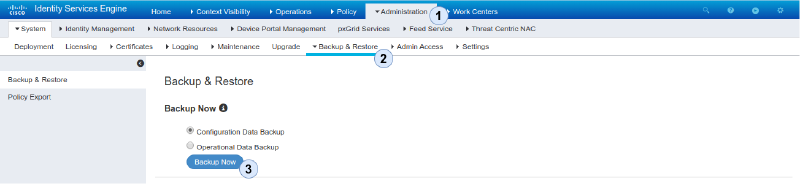
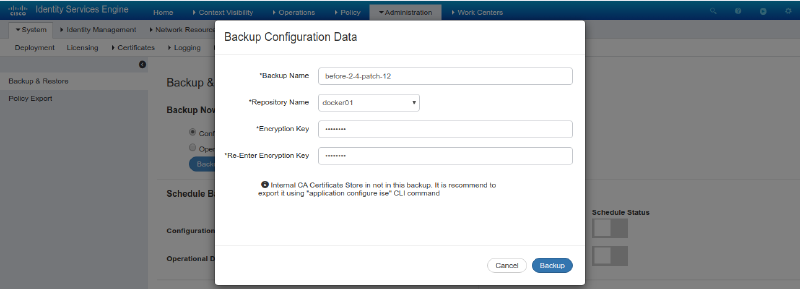
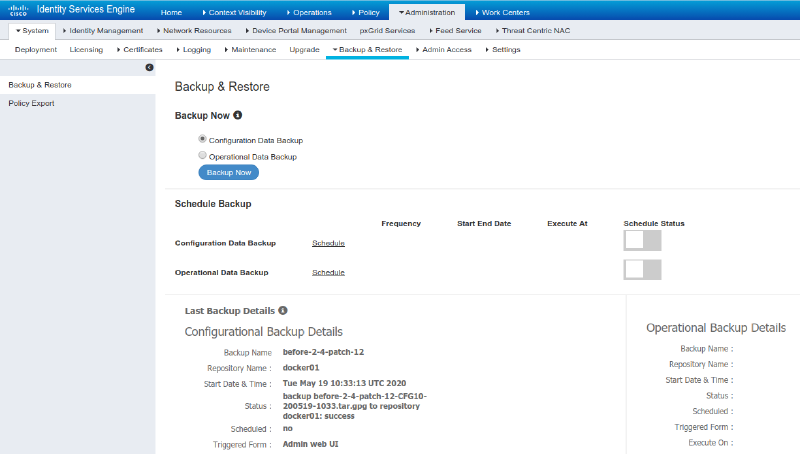
Always make sure you have an up2date backup before proceeding with the update. Of course there are many quality assurance tests that are run on the vendors side but not having an option to restore after a failed upgrade (for example due to power loss or a bug in the update bundle) can be quite a pain, so make sure you generate a backup file
Upload update#
To upload the package we will use a sftp repository on a management server and define a disk repository which we will reference later to upload the update file to
| |
| |
After defining the repository we need to add the ssh host key to ise
| |
Last but not least we can upload the package form mgmtsrv to the local diskrepository
| |
Installation#
After taking care of all the prerequsites we can finally go ahead and install the latest patch.
Warning
ISE will restart after patch installation
| |
| |
Verification#
After ISE is up and running again we can login to cli again and verify that the patch was installed successfully and all service are up and running again
| |
ise/admin# show application status ise

ISE PROCESS NAME                       STATE            PROCESS ID
--------------------------------------------------------------------
Database Listener                      running          7246
Database Server                        running          113 PROCESSES
Application Server                     running          15037
Profiler Database                      running          9420
ISE Indexing Engine                    running          16668
AD Connector                           running          20423
M&T Session Database                   running          9172
M&T Log Collector                      running          15363
M&T Log Processor                      running          15246
Certificate Authority Service          running          17818
EST Service                            running          18154
SXP Engine Service                     disabled
Docker Daemon                          running          10390
TC-NAC Service                         disabled

Wifi Setup Helper Container            disabled
pxGrid Infrastructure Service          disabled
pxGrid Publisher Subscriber Service    disabled
pxGrid Connection Manager              disabled
pxGrid Controller                      disabled
PassiveID WMI Service                  disabled
PassiveID Syslog Service               disabled
PassiveID API Service                  disabled
PassiveID Agent Service                disabled
PassiveID Endpoint Service             disabled
PassiveID SPAN Service                 disabled
DHCP Server (dhcpd)                    disabled
DNS Server (named)                     disabled
ISE RabbitMQ Container                 running          11501